
documents
Design one certificate template and generate certificates for many names at once — for course creators and academies.
Price
Regular priceLaunch price$9
One-time purchase · yours forever
Launch price, valid until January 31, 2027 — after that it returns to $15.
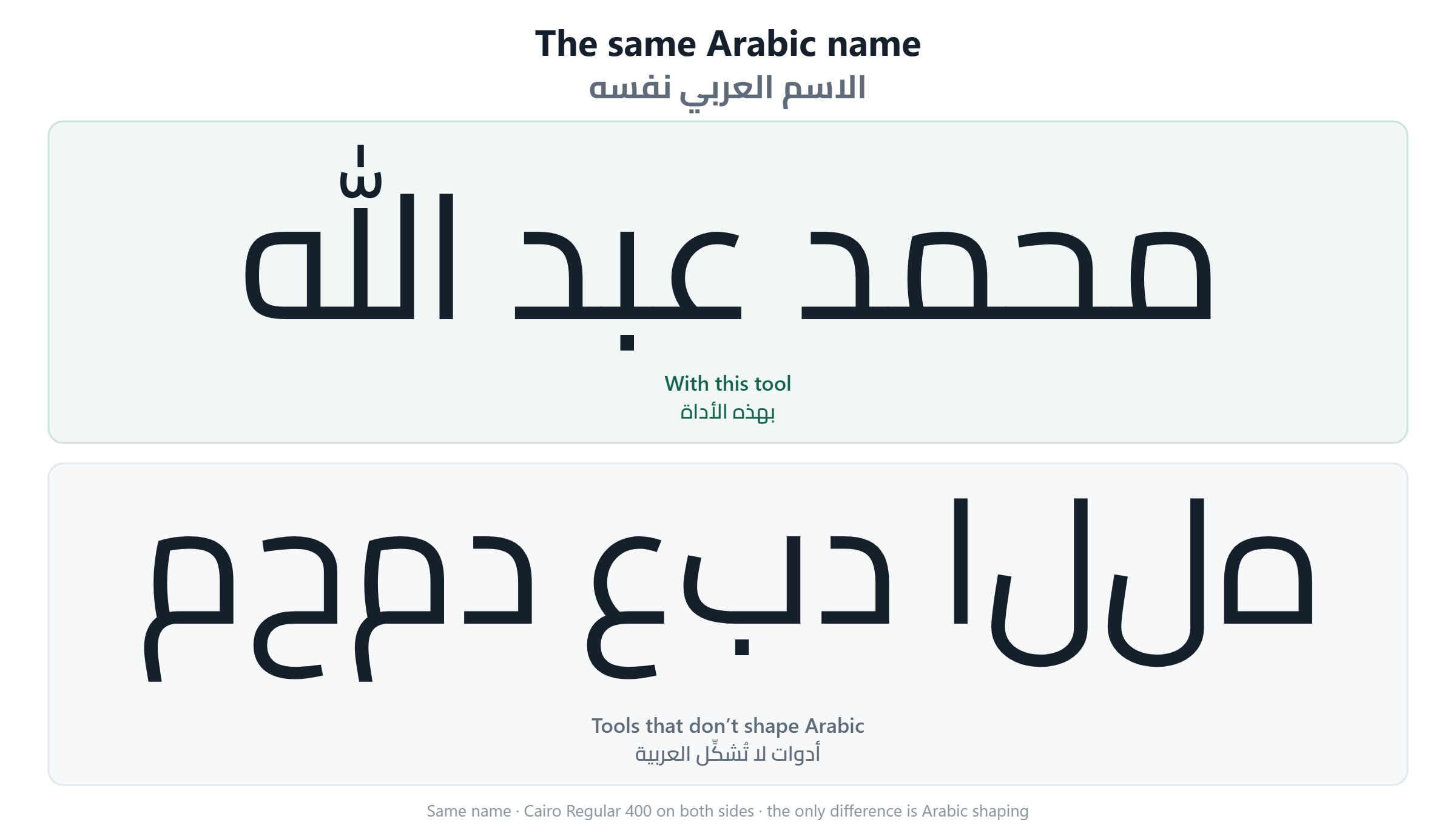
Upload or design your certificate template, then issue certificates with your trainees' names — one at a time or a whole batch from a name list. Correct Arabic, and it runs entirely in your browser, so your students' data never leaves your device.
certificate-generator turns a list of names into a set of finished certificates. You pick one of eight designs, paste your trainees' names, and download either a single PDF with a page per person or a ZIP with a separate file per person.
It is built for Arabic. Names, course titles and dates are shaped and ordered correctly in the finished PDF — which is the whole reason this tool exists.
It is 100% offline. There is no server, no account and no internet connection involved. Your trainees' names never leave your computer, and the tool stores nothing: close the tab and no trace remains.
The first step shows all eight designs as real certificates, not as names in a list — what you see is what you will get.
Pick one and carry on. You can change your mind at any point: your names, your uploaded logo and signatures, and your on/off choices all survive a change of design. Only the colours reset, because a palette belongs to the design it was drawn for.
The quickest way, and the one we recommend, is to paste. Open your list in Excel, select the cells with the names, copy, and paste them into the box. That route always keeps Arabic correct, because the clipboard hands the text over directly with no file encoding in between.
You can also open a CSV file with the link underneath. Either way the tool tells you what it understood — “6 names read.” — and shows you the first rows so you can see them before going any further.
If you would rather build your list from scratch than paste one, use “download a sample file” on the Names step — it sits next to the link for opening a CSV. You get a small spreadsheet with the right column names already in place and three example rows to type over.
Its columns come from the design you have chosen, so the file always matches the certificate you are about to make. Choose your design first and the sample arrives with exactly the fields that design uses — nothing missing, nothing spare. It opens correctly in Excel with the Arabic intact; that is what the file is saved for, and it is the whole reason for handing you one rather than describing the format.
If the names come out as “Ù…Øمد” instead of “محمد”, the file was written in a different text encoding from the one being read. This is common: Excel on an Arabic Windows saves CSV files in an older Arabic encoding, and it often separates columns with a semicolon rather than a comma.
The tool detects both and usually gets them right on its own. When it is not sure, it opens the two settings for you and marks them. When it is sure, they stay tucked behind “Do the names look wrong?”.
You do not need to understand any of it. Change the setting, look at the rows on screen, and stop when the names look right — the preview is the answer, not the label.
The third step is optional. The designs are ready to use as they are, and you can skip straight past it.
It is grouped by what you might want to do rather than by what can be changed.
Photograph or scan the signature on plain white paper, in even light, and upload the picture. The tool removes the white background for you so the signature sits on the certificate rather than in a white box.
If some of the paper is left behind — a grey shadow along one edge, for instance — push the “How much white to remove” slider to the right. If the signature itself starts to break up, pull it back. A picture that already has a transparent background is left exactly as it is.
If you do not have a signature to add, switch that slot off rather than leaving it empty. The line and the label underneath disappear with it, and the rest of the certificate re-centres — one signature ends up in the middle rather than clinging to one side.
With everything switched off the design closes the gap by itself and still looks finished. A certificate with an empty line and the word “Trainer” under it looks unfinished; one that plainly has no signature does not.
The preview is the certificate itself, drawn at screen size by exactly the same code that produces the PDF. There is no second version of it that could disagree.
Two buttons are worth using before a large batch: “Longest name” jumps to the name most likely to overflow its space, and “Check all rows” measures every row and reports anything that will not fit — without generating anything.
One merged PDF is a single file with a page per person. It is the smaller and faster of the two, and it is what you want if you are printing the batch.
A ZIP contains one PDF per person, named after them, plus an index.csv listing which file belongs to whom. It is what you want if you are emailing each person their own certificate.
Separate files cost several times more: each one carries its own copy of the background. For 300 certificates at print quality, expect roughly 6–9 MB merged against 53–80 MB as a ZIP. The tool shows you the range before you choose.
Every certificate is drawn as an image inside the PDF. That is what makes the Arabic correct: the letters are joined and ordered by the same engine that draws Arabic on your screen, instead of being handed to a PDF library that does not understand the script.
The cost is that the text in the finished PDF is not selectable and not searchable. You cannot copy a name out of the certificate, and searching a merged PDF for a name will not find it. If you need a searchable record, use the index.csv that comes with the ZIP.
A hundred certificates at print quality take roughly seven seconds as a merged PDF and around fifteen as a ZIP, on an ordinary laptop. Chrome, Edge and Firefox are all within about 20% of each other — measured, on the same machine.
One part cannot be made responsive: assembling the finished PDF is a single step the browser cannot interrupt, about three seconds for a hundred pages. The tool says “finalising” while it happens. It has not frozen.
No server, no internet, no account, no tracking, and nothing saved on your computer. Everything happens inside your browser tab.
You can prove it: disconnect from the internet entirely and the tool works exactly the same. That is not a figure of speech — it is how the tool is tested before release.